1 Welcome to MeshVault
Welcome to the official deployment and operational manual for MeshVault. MeshVault is an advanced, encrypted, decentralized peer-to-peer (P2P) storage system designed to help you synchronize and safeguard files across your own personal devices without relying on third-party cloud hosting servers.
With MeshVault, your privacy is enforced mathematically. All files remain completely encrypted with zero-knowledge standards before leaving your local computer. Payloads are divided into redundant segments and securely replicated across your mesh network, eliminating single points of failure while retaining complete sovereignty over your data assets.
2 System Requirements
Before proceeding with the deployment, confirm that your hardware and operating system environment satisfy the following minimum requirements:
3 Installation Timeline
Follow the sequential progress timeline below to download, configure, and initialize MeshVault on your local node:
Retrieve Installer
Download the signed executive file MeshVault_Setup.exe from our official repository.
Execute Wizard
Double-click the downloaded installer, grant administrative permissions, and select your preferred directories.
Finalize Service Setup
Let the setup complete. The installation automatically configures local SQLite databases and network background ports.
Launch UI
Select "Launch MeshVault" or open it via the desktop shortcut to initialize the WPF user interface.
Uninstallation
If you need to uninstall MeshVault from your system, follow the standard procedure:
- Windows Apps & Features: Open the Start Menu, search for "Add or remove programs", locate MeshVault in the list, and click Uninstall.
- Standard Setup Uninstaller: Alternatively, run the
unins000.exeuninstaller utility located inside the MeshVault installation directory (usuallyC:\Program Files\MeshVault). - Data Purge Selection: The uninstaller will prompt you whether to keep or securely purge your local databases and encrypted chunk replicas. Choose depending on whether you plan to reinstall later or remove all trace of data.
4 First Launch Walkthrough
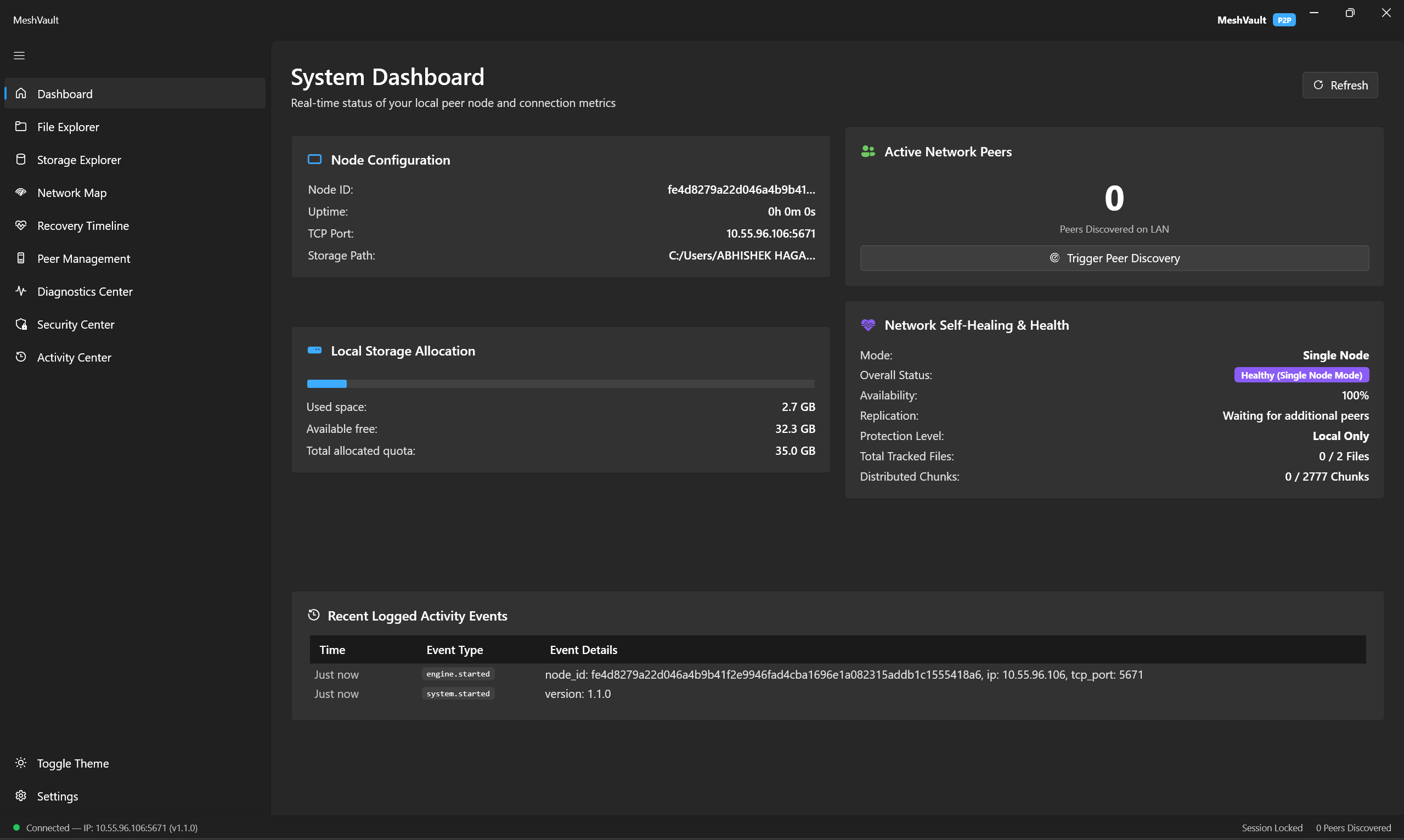
Upon starting the application for the first time, you will be greeted by the master GUI console. Below is an overview of the interface zones you will interact with:
Visualizes real-time bandwidth consumption, global vault health ratios, local storage limits, and task progress.
Provides lateral movement links between Dashboard, File Manager, Peer Manager, Activity Log, and System Settings.
Displays a circular gauge showing used vs. allocated space across the local daemon directory.
Lists all discovered devices in your decentralized network alongside their ping, synchronization index, and connection status.
5 Unlocking the Session
For critical security preservation, MeshVault launches in a Locked state by default. When locked, the master cryptographic keys responsible for decrypting local files and processing remote payloads remain isolated.
To use the application, navigate to the Settings screen, select Unlock Vault, and input the secret passphrase created during your initial initialization. Until this key decryption phase occurs, the following operations are strictly blocked:
- ❌ File Uploading: Local AES encryption key generation is unavailable.
- ❌ File Downloading: Chunk assembly keys cannot be decrypted.
- ❌ Metadata Sharing: Recipient-based public key exchanges are locked.
- ❌ Global Deletions: Revocation signatures cannot be generated.
- ❌ Self-Healing Engine: Automatic background chunk repairs are suspended.
6 Uploading Files
Adding a file to your decentralized network follows a secure four-step pipeline. First, click on Upload File in the file manager, select your files, configure optional secondary password protection, select replication parameters, and click submit.
Internally, the daemon carries out the following operations:
- Encryption: The file is processed locally via envelope encryption. A unique File Encryption Key (FEK) is generated to encrypt the content.
- Chunking: The encrypted data is split into multiple equal-sized chunks (typically 2MB/4MB) and labeled with individual SHA-256 integrity hashes.
- Distribution: The daemon selects remote peers in your mesh and pushes these encrypted chunks to them over secure connections.
- Manifest Creation: A signed manifest document containing the chunk addresses and decryption keys (encrypted under your master key) is written and sync'd.
7 Downloading Files
To retrieve an existing file, browse your inventory in the File Manager, highlight the target file, choose your output destination, and press download.
To guarantee absolute privacy and system integrity, the download execution follows these steps:
- ✓ Decryption check: The daemon ensures your session is unlocked and reads the target file's manifest.
- ✓ Chunk Retrieval: Active threads request the required chunk hashes from online nodes across the mesh concurrently.
- ✓ Integrity Audit: As each chunk arrives, its SHA-256 hash is computed and matched against the signed manifest to prevent tamper injection.
- ✓ Reconstruction & Decryption: The blocks are assembled, decrypted in-memory using the FEK, and written as a unified file to your disk.
8 Deleting Files
Removing data from a distributed mesh requires explicit instruction. MeshVault supports two distinct deletion modes:
Local Removal
Removes downloaded chunks only from your current system directory to save storage space. The manifest and chunk copies residing on other network peers remain intact, and the file is still accessible.
Global Deletion
Broadcaster nodes publish a cryptographically signed deletion event. All connected peers delete local chunk segments and revoke the file manifest. This operation is permanent and irreversible.
10 Peer Connection & Discovery
Nodes in your mesh communicate using authenticated socket handshakes. In your Peer Manager, nodes will display one of the following dynamic states:
11 Dashboard Overview
Here is a detail-by-detail breakdown of the metrics and metrics panels displayed on the main dashboard screen:
Displays the total amount of disk space occupied by local chunks, alongside a maximum quota limit indicator.
Lists total managed manifests, active sync transfers, and files with online replication guarantees.
Shows the active count of network links, round-trip ping latency, and mesh handshake diagnostics.
Calculates overall file survivability based on online chunk redundancy levels and active repair loops.
Scrollable feed showing daemon operations, handshake errors, chunk uploads, and file sync completions.
Flags system threats, database access warnings, firewall block notifications, and session locking updates.
12 Cryptographic Security
MeshVault incorporates rigorous security primitives to guarantee zero-knowledge privacy for all stored information:
- 🔒 AES-256-GCM: Standard authenticated encryption used to secure file blocks against extraction and passive eavesdropping.
- 🔒 Envelope Encryption: Master session keys encrypt individual File Encryption Keys (FEK). Key updates do not require re-encrypting large data payloads.
- 🔒 X25519 DH Handshakes: Curve25519 elliptic keys are used to establish secure, authentic network communication channels between peer nodes.
- 🔒 Ed25519 Manifests: Catalog records are cryptographically signed by the creator, preventing peers from modifying, inserting, or deleting indices.
- 🔒 Memory Isolation: Critical keys reside in protected memory blocks and are cleared immediately upon locking the session.
13 Frequently Asked Questions
Review answers to the most common configuration and operations questions asked by administrators:
Why can't I upload files? ▼
Why must I unlock the session? ▼
Why don't I see my peers? ▼
Can I remove a file only from my laptop? ▼
What happens if another peer goes offline? ▼
Can I recover deleted files? ▼
What if I forget my passphrase? ▼
14 Troubleshooting Guide
If you encounter errors during operation, consult the reference table below for common symptoms, diagnoses, and resolution pathways:
| Symptom | Root Cause | Remedy |
|---|---|---|
| Session Locked | Master key is not loaded in memory. | Navigate to settings, type your secret passphrase, and click Unlock Session. |
| Peer not visible | Firewall block or incorrect network discovery ID. | Verify local firewall has port inbound permissions configured. Check Network ID string. |
| Upload failed | Session is locked or storage capacity exceeded. | Unlock session. Check storage allocation values on dashboard. |
| Download failed | Insufficent active peers hosting file chunk replicas. | Ensure at least the threshold number of replica nodes are online and connected. |
| Connection issues | UPnP is disabled on router or double NAT network layout. | Enable UPnP on your router config or establish a manual port-forwarding rule. |
| Permission denied | Local daemon does not have write access to directories. | Restart MeshVault launcher as Administrator or edit system security ownership permissions. |
15 Best Practices
To ensure maximum file availability and mesh health, follow these operational best practices:
- 🛡️ Regular Backups: Store copies of critical credentials and passphrases in safe physical locations.
- 🛡️ Strong Passphrases: Use long, high-entropy sentences or generated passphrases for session locks.
- 🛡️ High Node Availability: Keep at least two node peers online to ensure fast parallel file assembly.
- 🛡️ Verify Upload Checksums: Cross-check SHA-256 hashes inside manifests after loading massive datasets.
- 🛡️ Keep Software Updated: Regularly check for security advisories and install setup updates.
16 Need Help?
If you need assistance, would like to report technical bugs, or need custom assistance with enterprise deployments, please contact our teams: